Specification Sets
Apply Specification Sets to a Data Table
Permissions and access
Minimum role: Researcher
Client type: JMP add-in for CoBaseKRM
This feature allows you to apply specification sets to a orignal JMP data table.
Note
The feature is not supported for CoBaseKRM-unformatted JMP data tables. It means that JMP data tables must have metadata of hidden columns of identifiers and parameter versions before you can apply specification sets to them. If you are working with an original JMP data table, you will need to upload it to formatted with metadata, download it to apply specification sets, and the reupload the it.
To apply specification sets to a data table to be uploaded to the database:
-
Open a CoBaseKRM-formatted JMP data table.
-
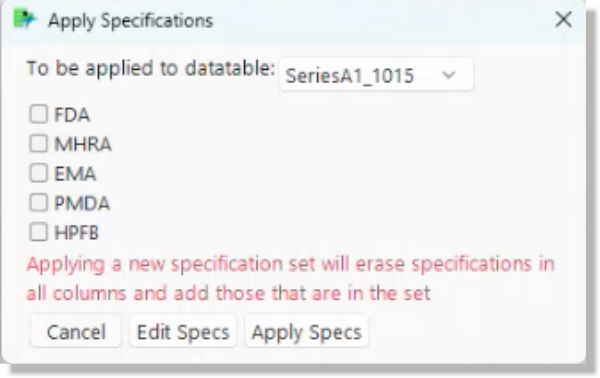
Click or tap the Predictum > CoBaseKRM > Apply Specification Sets menu option.

The Apply Specification Sets dialog appears.
-
Select one or more checkboxes for the specification sets that you want to be applied to your JMP data table.
-
Optional: If you want to edit any of the specifcation sets or create a new specification set, click or tap the Edit Specification Sets button.
Warning
If you click or tap the Edit Specification Sets button, a warning message will notify you you that you will be redirected to the Governance > Specifications tab in the CoBaseKRM web client in order to edit specification sets. Once you have clicked or tapped OK, the warning message and the Apply Specification Sets dialogs will disappear. You will have to start over to apply updated specifications sets.
-
Click or tap the Apply Specification Sets button.
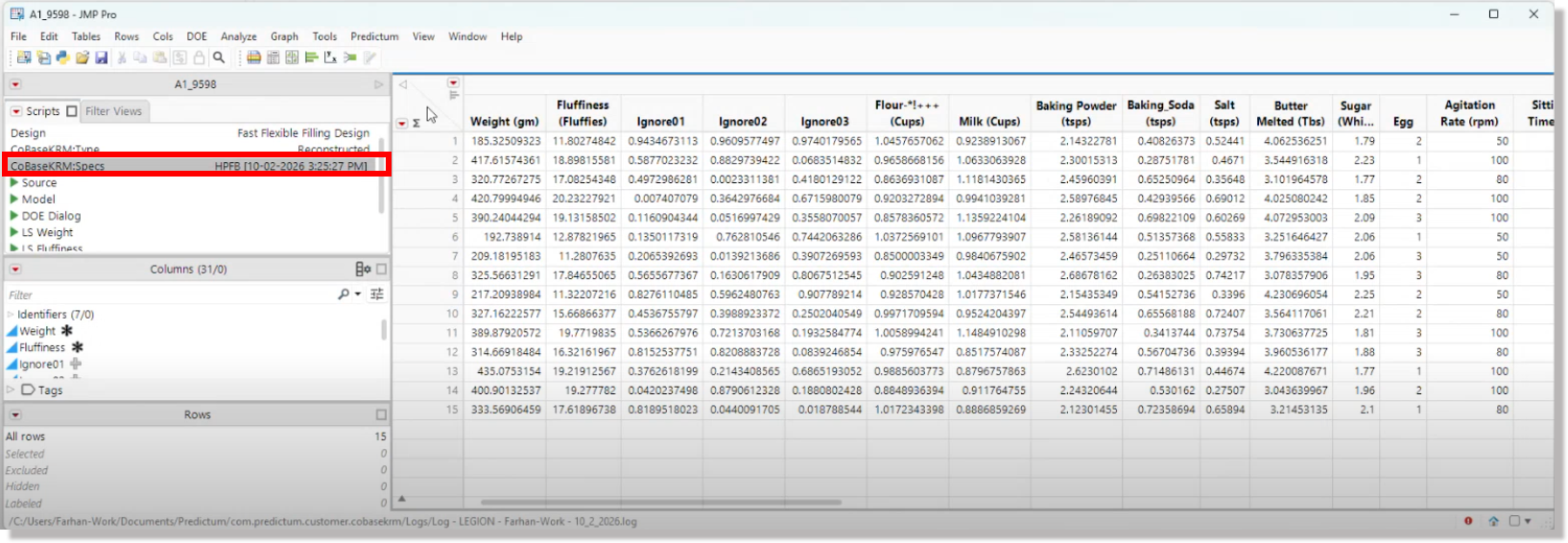
You will see in your JMP data table that selected specification set(s) are applied to the corresponding parameter columns.
Manage Specification Sets
Permissions and access
Minimum role: Lab manager
Client type: web client
To manage specification sets, click or tap the Predictum > CoBaseKRM > Manage Specification Sets menu option.

This opens the web client and navigates to the Governance > Specifications tab, where you can edit and manage your specification sets.