Members settings
Members settings for a workspace
Permissions and access
Minimum role: Lab manager
Client type: web client
The Members tab for a workspace lists the members belonging to a workspace and their roles. Each workspace has at least one assigned system administrator.
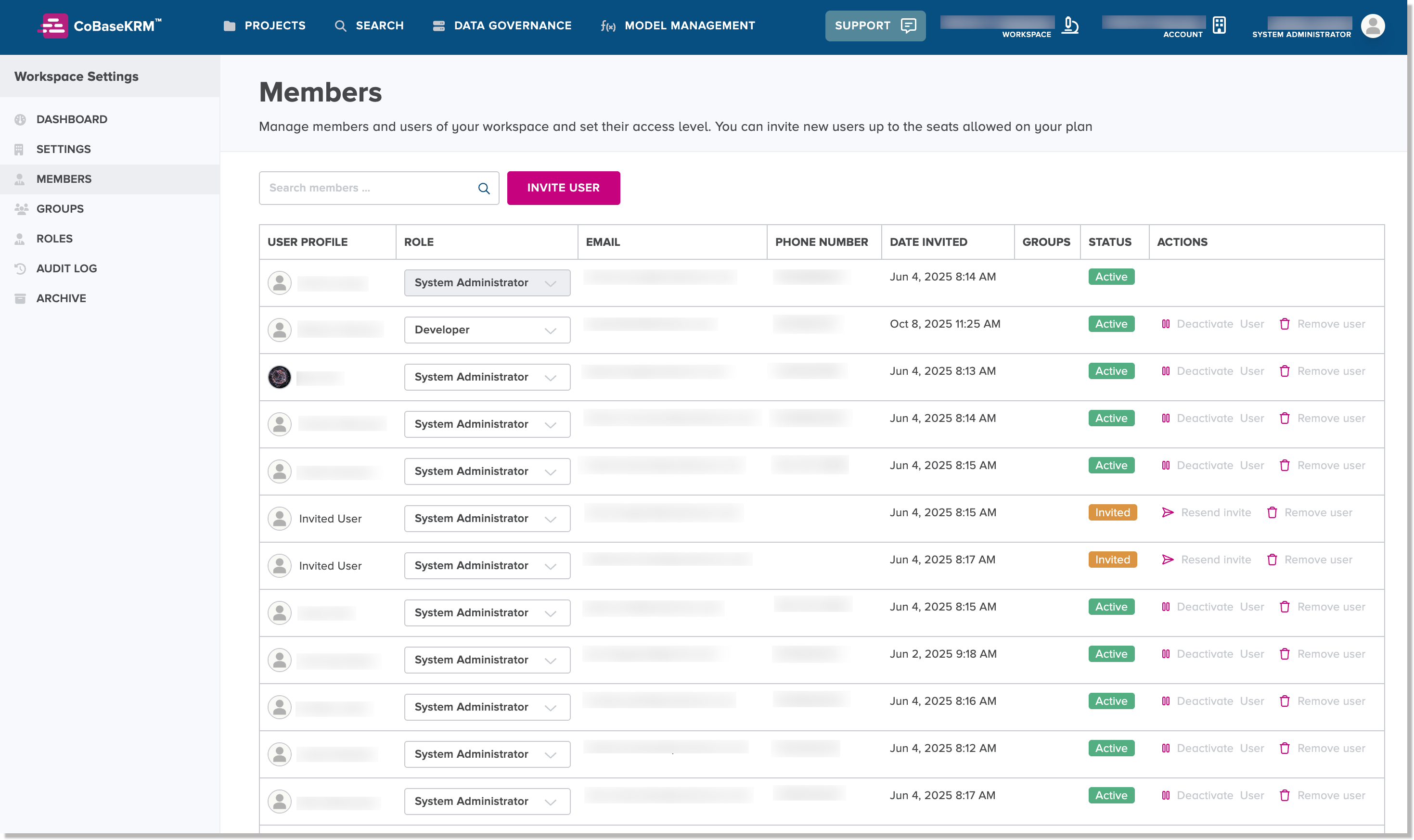
You can perform the following functions on the Members tab for a workspace:
Re-invite user to a workspace
When you initially invite a user to join a workspace, the user has a default time period of one (1) week to the email notification to respond to the invitation. After the default time period, the user's status remains "Invited" with respect to the workspace. In order for the user to join a given workspace, you will need to re-invite the user.
To re-invite a user to a workspace:
-
On the Workspace > Members tab for the Settings view, click or tap the Re-invite user function beside the user you want to re-invite.
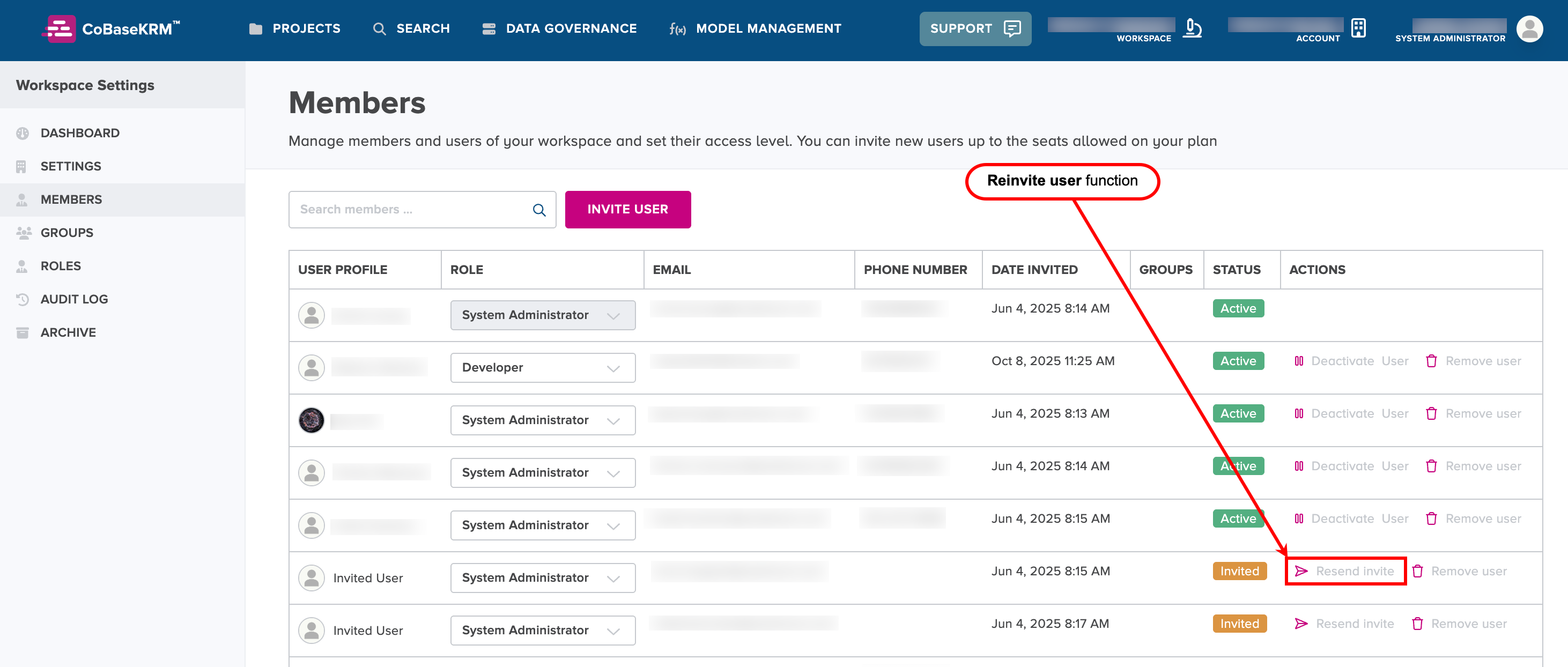
Note
The given user has a status of "Invited" before you can re-invite him/her.
-
Click or tap the Re-invite user function.
A confirmation message is displayed that an invitation has been sent once again to the given user.
Remove a user from a workspace
To remove a user from a workspace:
-
On the Workspace > Members tab for the Settings view, click or tap the Remove user function beside the user you want to remove.
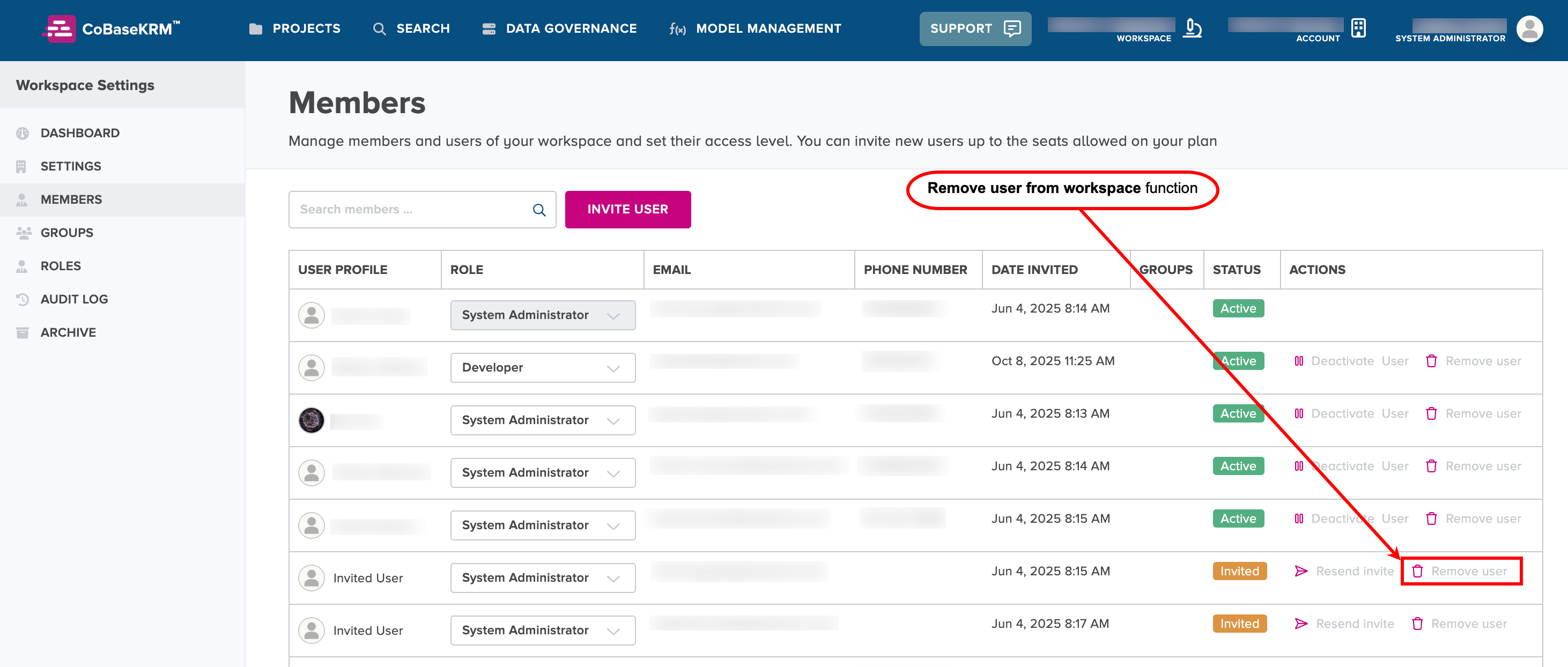
The Remove user from workspace dialog appears.
-
In the Remove from workspace dialog, type the exact username in the case-sensitive field and click or tap Remove.
The Remove user from workspace dialog disappears. A confirmation message is displayed when the specified user has been removed from the workspace.