Metrics
Permissions and access
Minimum role: Lab manager
Client type: web client
Metrics in statistics are quantitative, numerical measurements that are used to track, analyze, and interpret data, for example, averages, ratios, or percentages. The CoBaseKRM web client lets you define metrics so that you can organize and list them in a structured manner. You can define metric categories to classify metrics into meaningful groups.
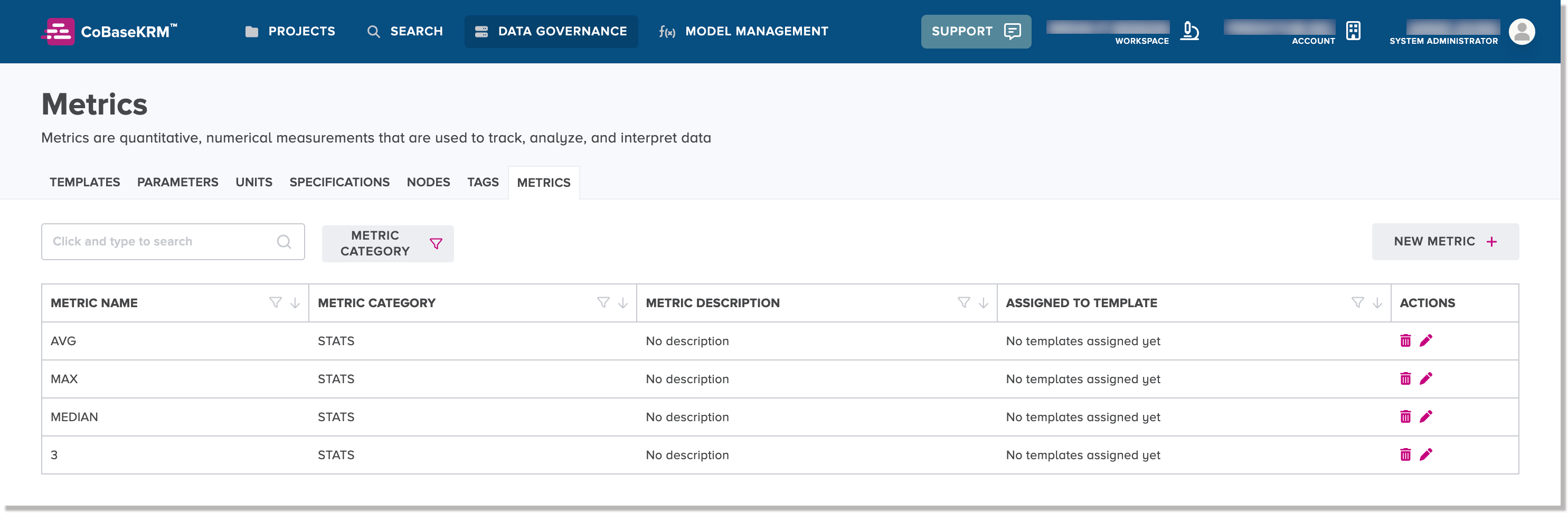
Create a new metric category
To create a new metric category:
-
In the web client, navigate to the Data Governance - Metrics tab.
-
Click the New Metric Category button.
A drop-down list of existing metric categories, if defined, is displayed and an option to add a new metric category.
-
Click Add new metric category.
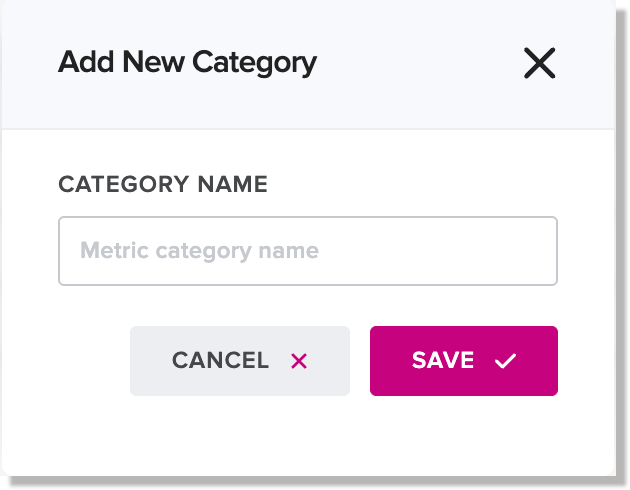
The Add new metric category dialog appears.
-
In the Metric Category Name field, type the name of the new metric category.
-
Click Save.
The new metric category has been created and is displayed in the metric categories drop-down list.
Create a new metric
To create a new metric:
-
In the web client, navigate to the Data Governance - Metrics tab.
-
Click the New Metric button.
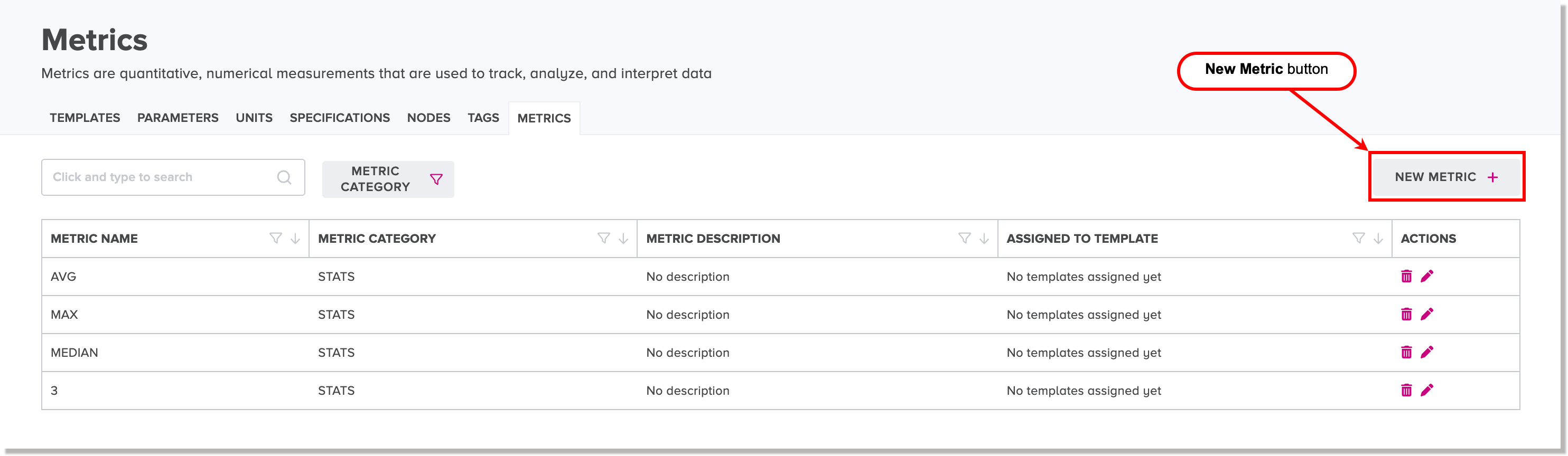
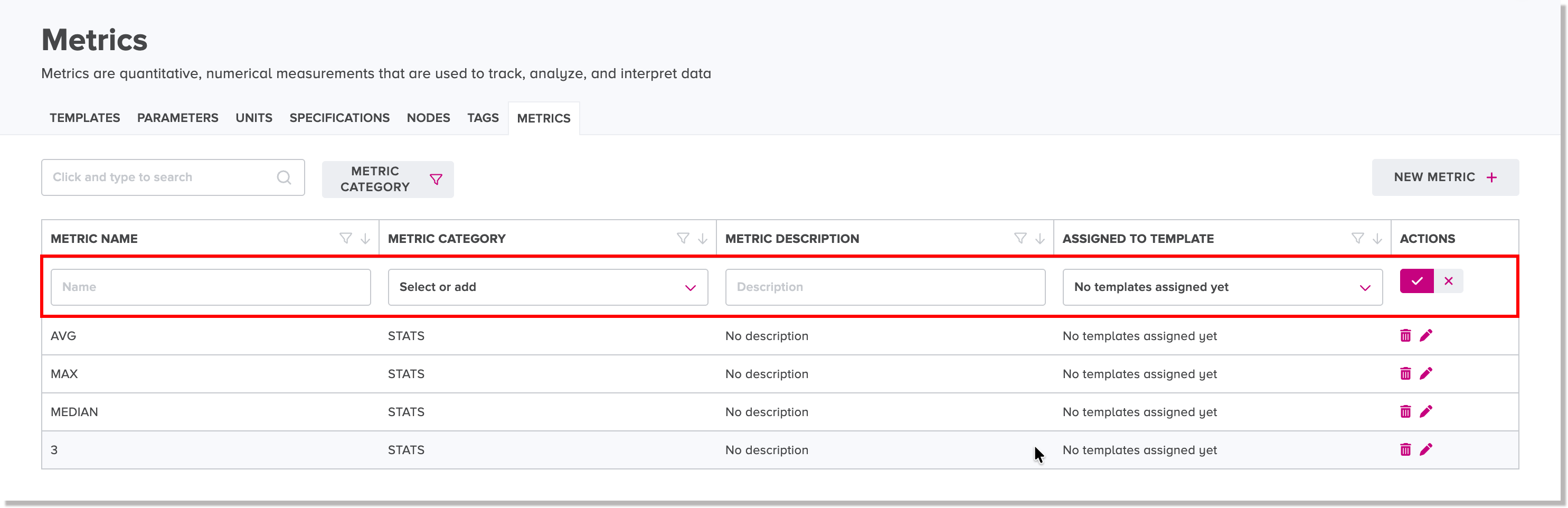
A new, editable metric record is displayed.
-
In the Metric Name field, type the name of the new metric.
-
Click the Metric Category drop-down list and select the metric category to be associated to the new metric.
-
Optional: In the Metric Description field, type a description for the new metric.
-
Optional: In the Assigned to Template field, select the template name that you want to be associated to the new metric.
-
Click the save icon
 .
. The new metric has been created and is listed on the Metrics tab.
Edit an existing metric
To edit an existing metric:
-
In the web client, navigate to the Data Governance - Metrics tab.
-
Click edit icon beside an existing metric name that you want to edit.
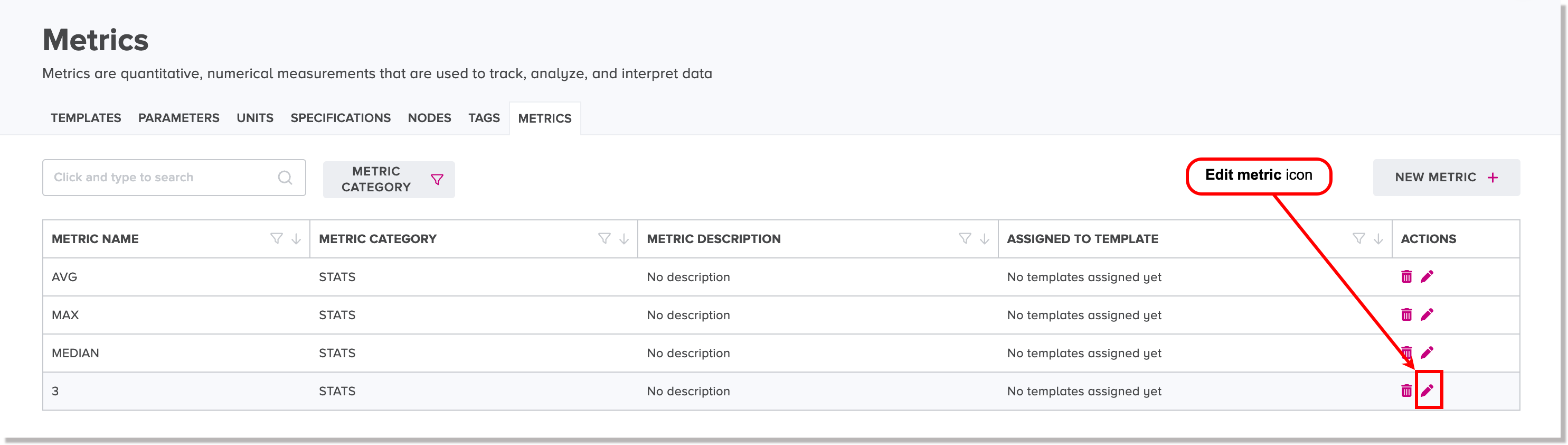
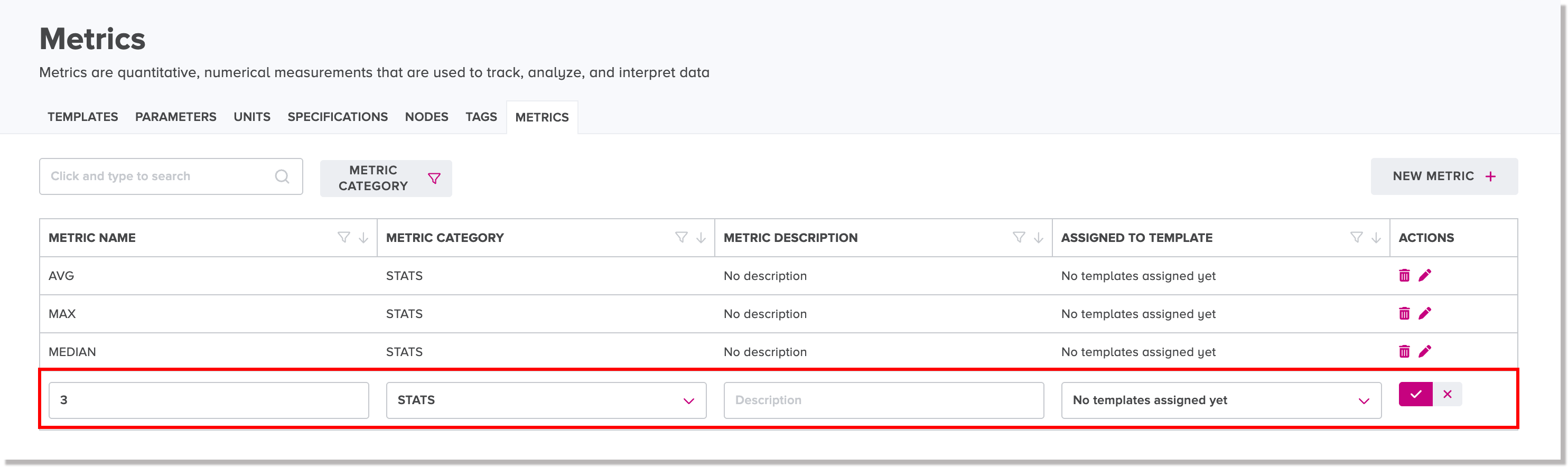
The existing metric record becomes editable.
-
Edit the details of the existing metric, as needed.
-
Click the save icon
. The existing metric has been edited.
Delete an existing metric
You can delete an existing metric if it is not associated to a template.
Note
Once you have deleted an existing metric, it will not be recoverable and will no longer be searchable.
To delete an existing metric:
-
In the web client, navigate to the Data Governance - Metrics tab.
-
Click the delete icon beside the existing metric name that you want to delete.
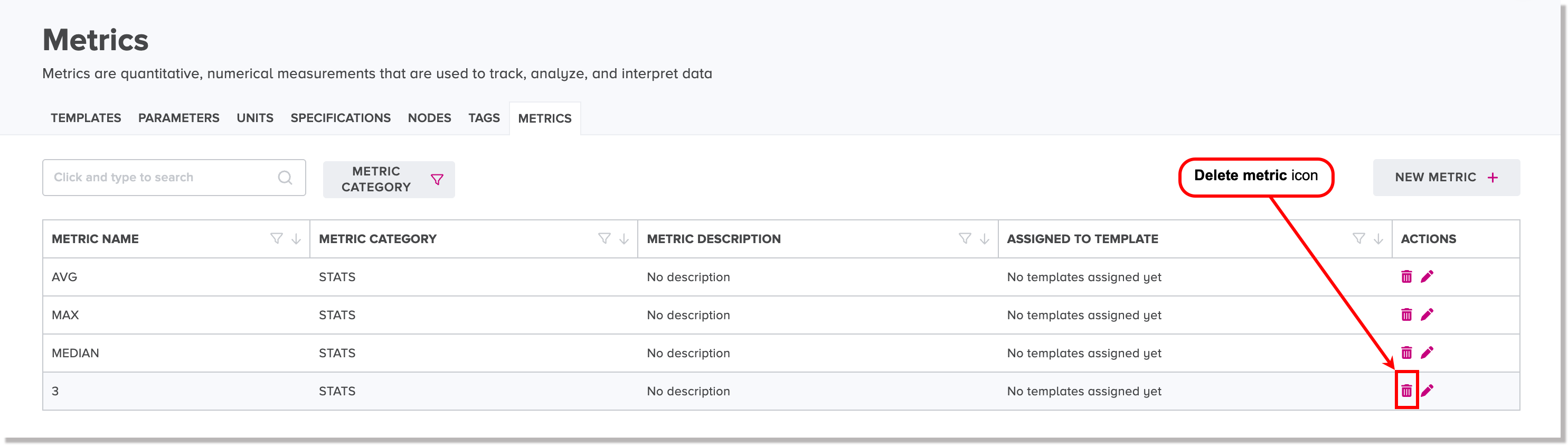
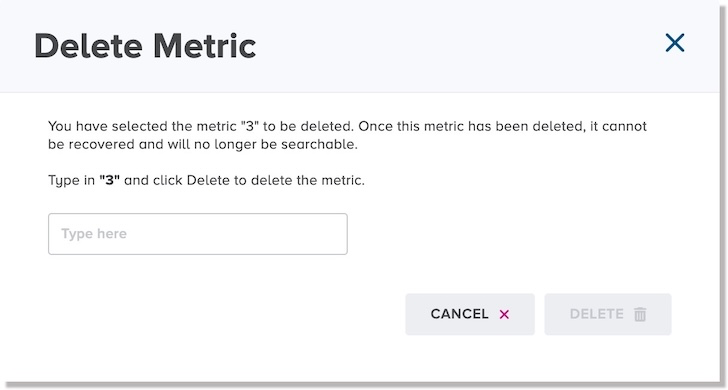
The Delete Metric dialog appears.
-
To confirm that you want to proceed with the deletion of the metric, type in the exact name of the metric in the case-sensitive field.
-
Click Delete.
The selected metric has been deleted and has been removed from the list of metrics.