Profile settings
Permissions and access
Minimum role: Guest
Client type: web client
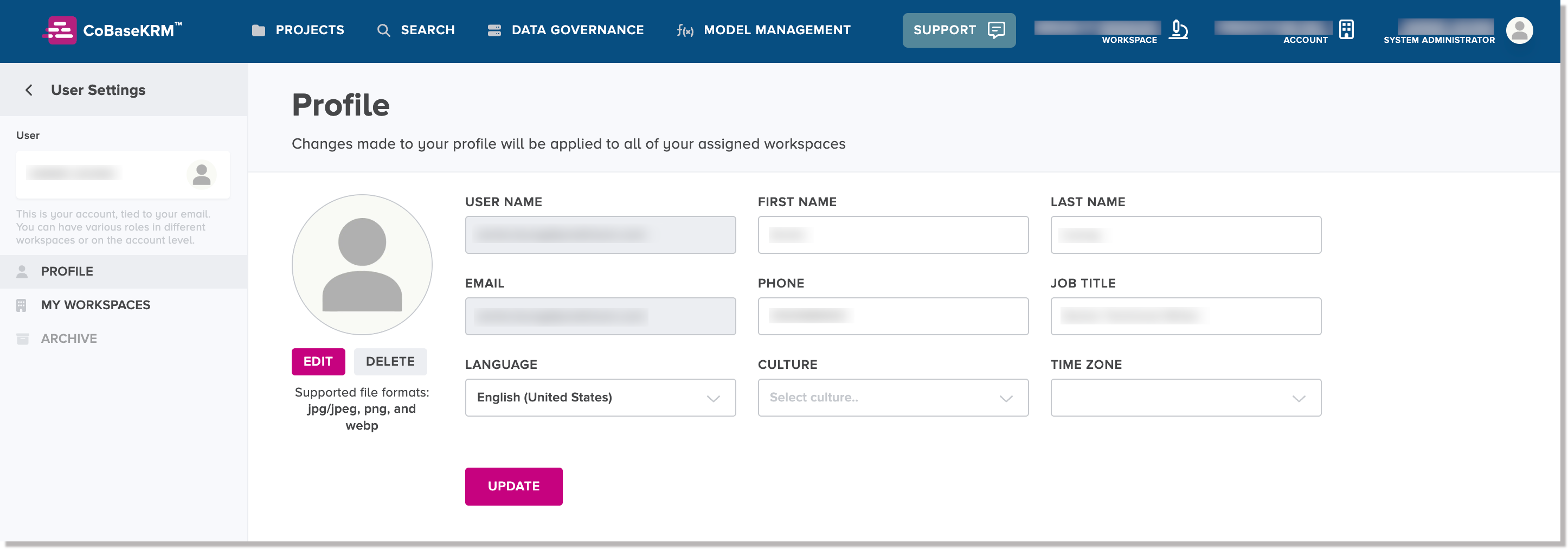
A profile for your user account in the web client is created when you join a workspace. You can edit your profile settings and set an image or avatar for your user account on the User account > Profile tab.
Edit a profile
To edit a profile:
-
On the User settings > Profile tab, edit the details in the fields, as needed.
-
To save the changes, click or tap the Update button.
Set or update a profile image
To set or change a profile image:
-
In the User settings > Profile tab, click or tap the Edit button below the profile image area to the left of the profile information.
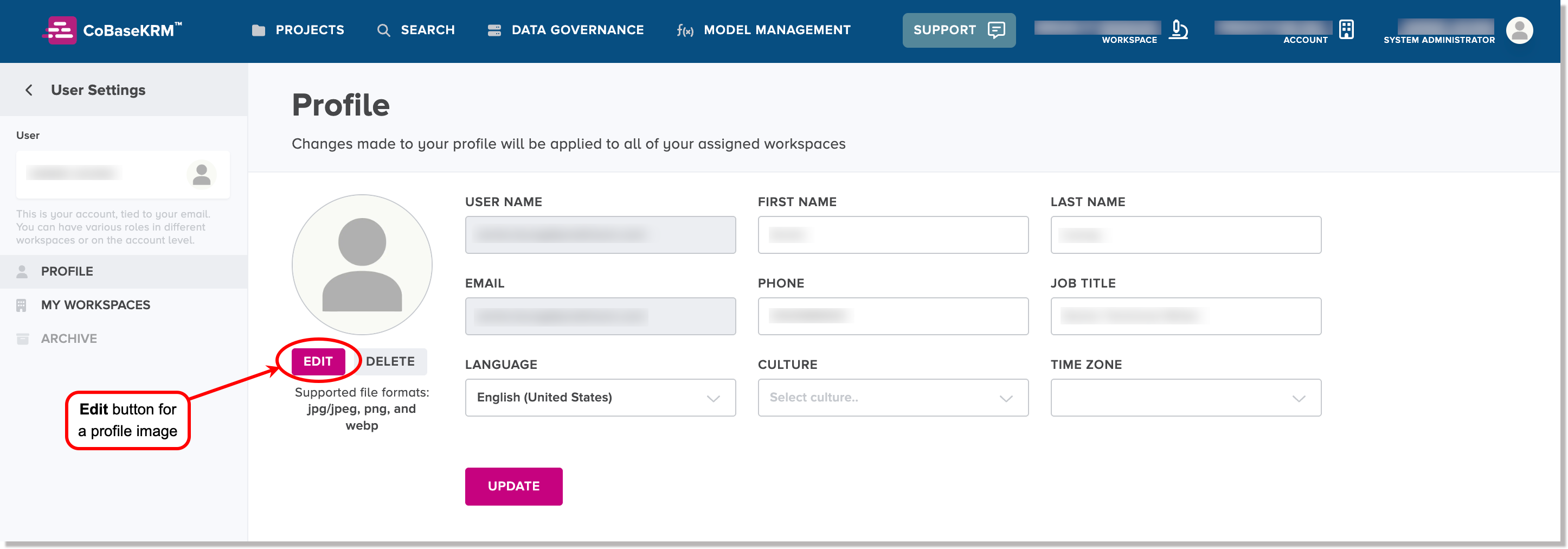
A local directory window appears for you to select an image file.
Info
The following file formats for images are supported: JPG or JPEG, PNG, and WebP
-
Select an image file and click or tap Open.
A preview of the selected image is displayed in the profile image area.
Delete a profile image
To delete a profile image on the User settings > Profile tab, click or tap the Delete button below the profile image area.
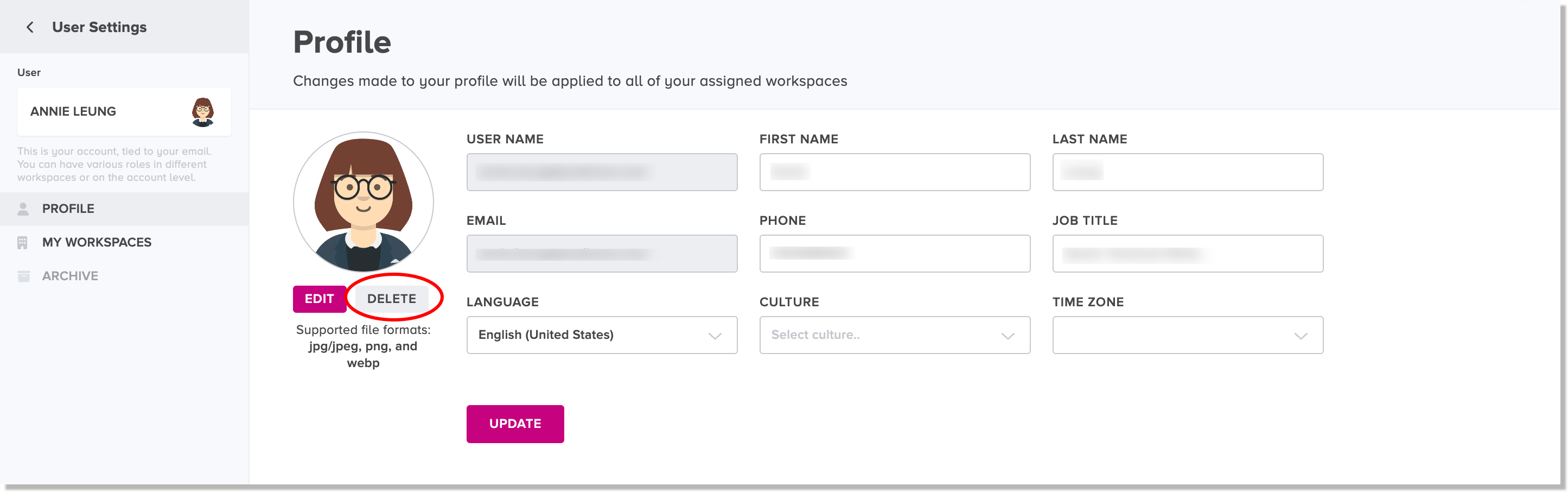
The profile image is immediately deleted.