Navigation in the JMP add-in
When you log in to the JMP add-in for CoBaseKRM, the menu bar displays the Projects view of a workspace that you were last working within.
Navigation linka for the major functional areas within a workspace in the JMP add-in are organized on the menu bar.

Projects view
When you click or tap the link to navigate to the Projects view, it displays a list of active projects that you belong to. After you log in, you are navigated to this view of your assigned workspace by default.

When you click or tap the upload icon beside a project name, it opens the Upload dialog to let you upload a data table and other files to the database.
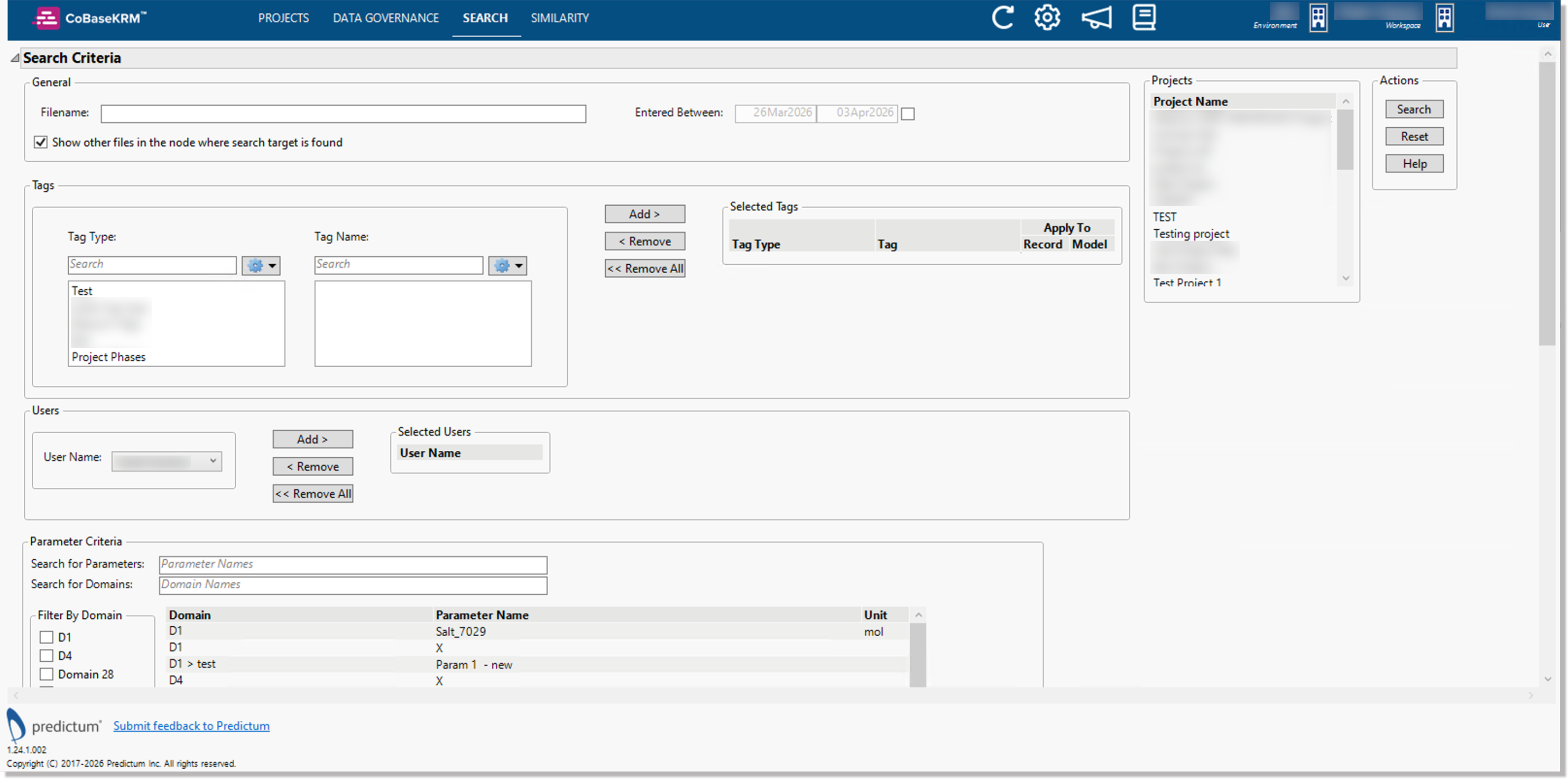
Search view
When you click or tap the link to navigate to the Search view, it lets you define search terms and filters to search for parameters within data tables, models, project records, and other related metadata in the database.
Note
The Data Governance view is displayed in the web client only. If you click or tap the link for the Data Governance view in the menu bar, you will be navigated to the web client.
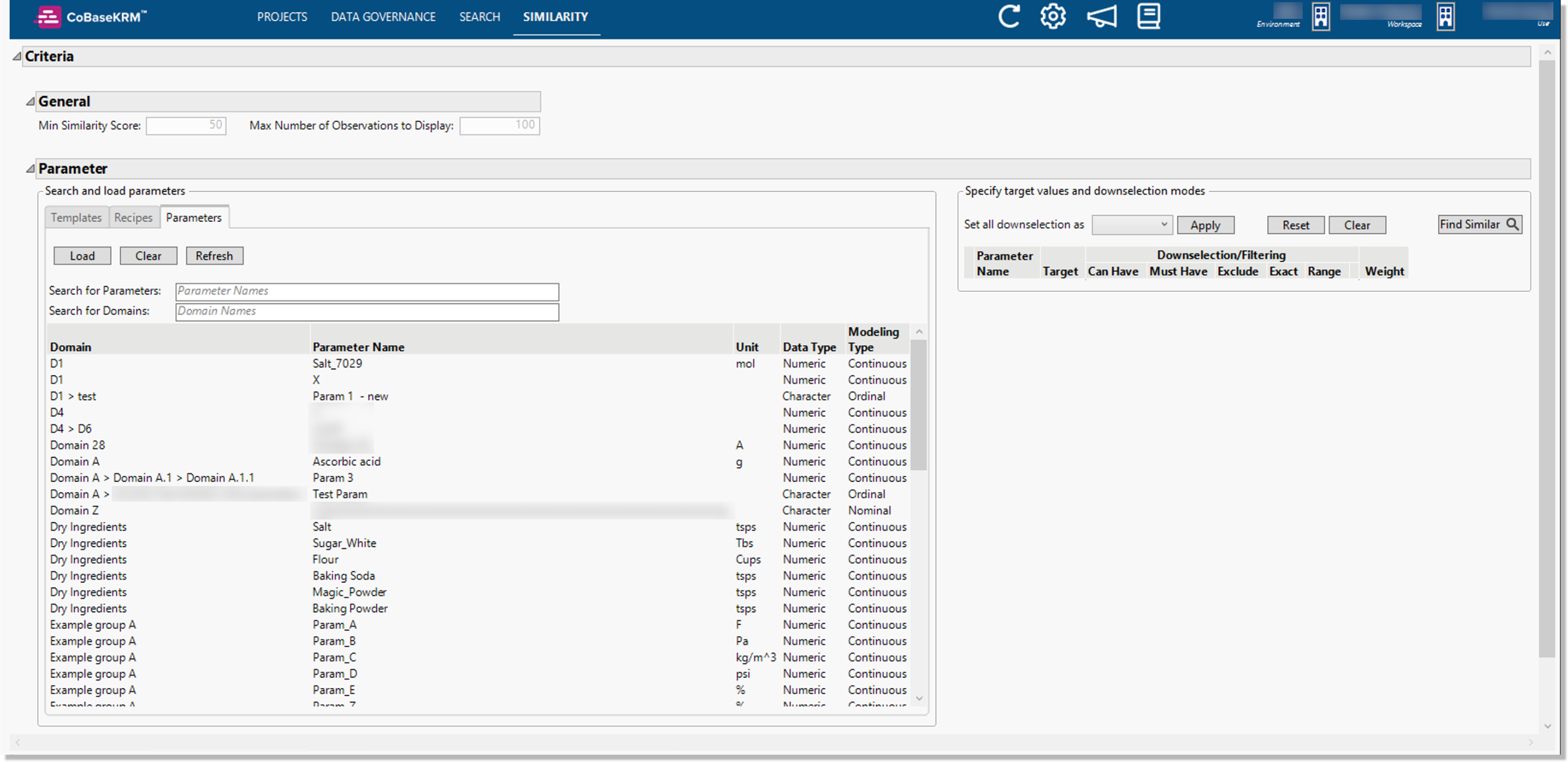
Similarity view
When you click or tap the link to navigate to the Similarity view, it lets you define similarity criteria to search for similar parameters, data tables, models, project records, and other related metadata in the database.
Note
The Similarity view is only supported in the JMP add-in for CoBaseKRM.
Switch to a different workspace
If you are assigned as a member to more than one workspace, you can navigate to a different workspace by clicking or tapping the Workspace name field and icon beside the workspace name field in the navigation bar of the JMP add-in.
To switch to different workspace:
-
Click or tap the Switch Workspace icon in the navigation bar.

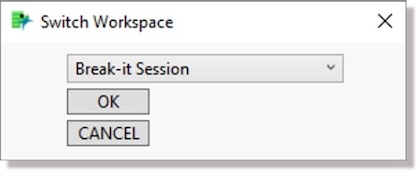
The Switch Workspace dialog appears.
-
In the drop-down list, select the name of the workspace that you want to switch to and click or tap OK.
The Switch Workspace dialog disappears and the view is updated to the Projects view of the selected workspace.
Switch to a different system environment
If your system configuration supports multiple system environments, you can switch from one system environment to another by using the Switch Environment icon beside the system environment field in the navigation bar of the JMP add-in.
To switch to a different system environment:
-
Click or tap the Switch Environement icon in the navigation bar.
The Switch Environment dialog appears.

-
In the drop-down list, select the name of the system environment that you want to switch to and click or tap OK.
The Switch Environment dialog disappears and the view is updated to the Projects view of the selected system environment.
View the Release Notes
In the navigation bar of the JMP add-in, you can click the announcement icon to view the latest release notes in your default web browser.
To view the release notes:
-
Click or tap the announcement icon in the navigation bar.

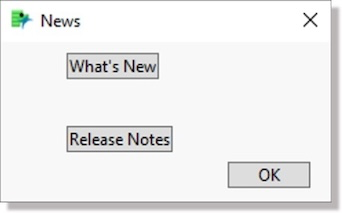
The News dialog appears.
-
Click or tap the Release Notes button.
The release notes are displayed in a new tab of your default browser window.
View the user documentation for the JMP add-in
You can view the user guide for the JMP add-in by clicking or tapping the documentation icon in the navigation bar of the JMP add-in.
To view the user guide for the JMP add-in:
-
Click or tap the documentation icon in the navigation bar.

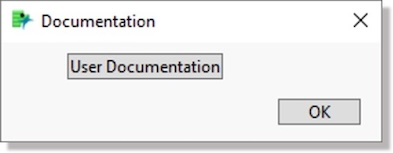
The Documentation dialog appears.
-
Click or tap the User Documentation button.
The user documentation is displayed in a new tab of your default browser window.