Workspaces
The workspace icon in the navigation bar of the web client lets you:
View a dashboard for a workspace
The Workspace > Dashboard tab of the Settings view displays a dashboard for a given workspace. It provides a snapshot of the usage of a workspace.
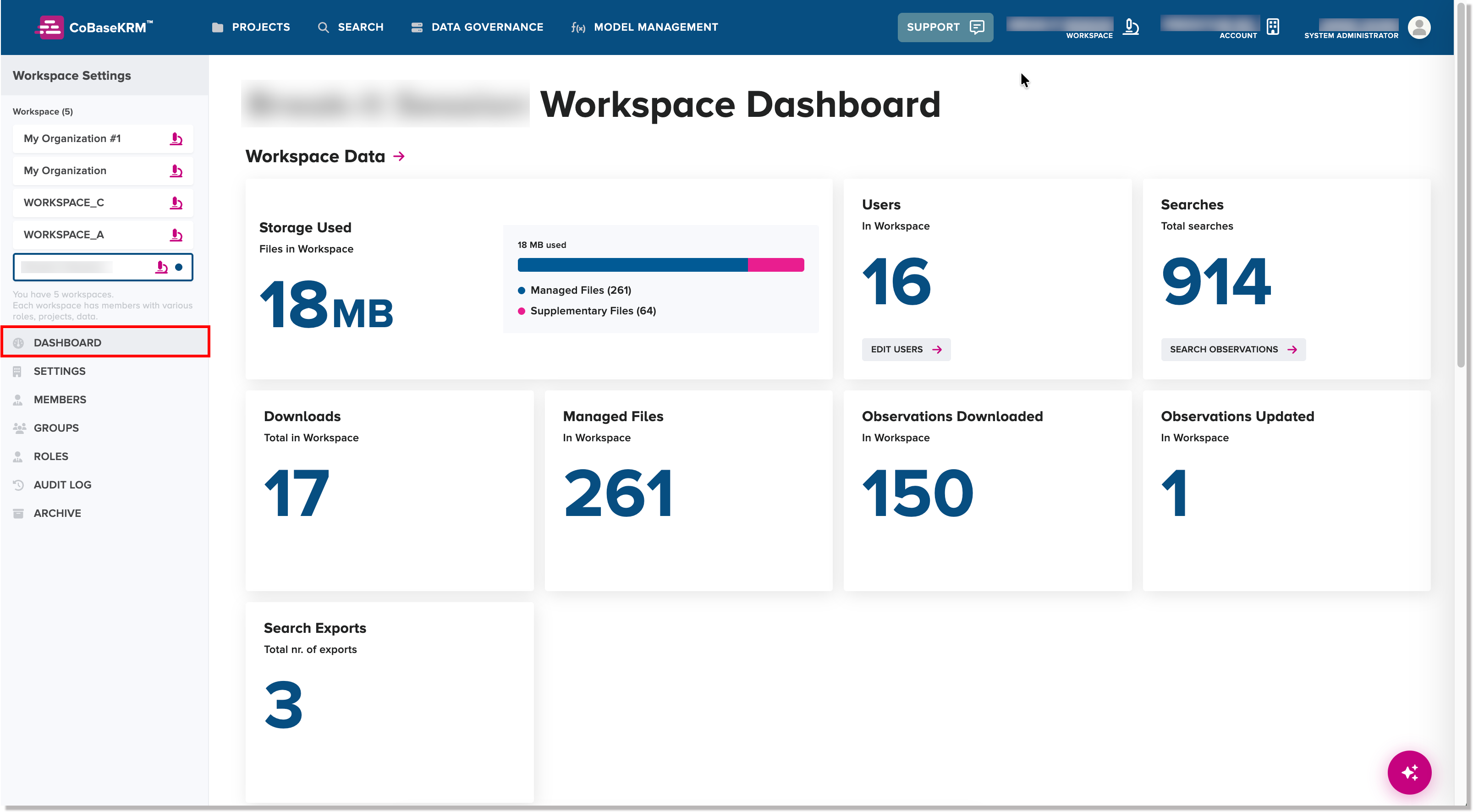
A workspace dashboard is divided into three main sections and provides total counts for commonly used objects:
- Workspace objects
- Data governance objects
- Project objects
Switch to a different workspace
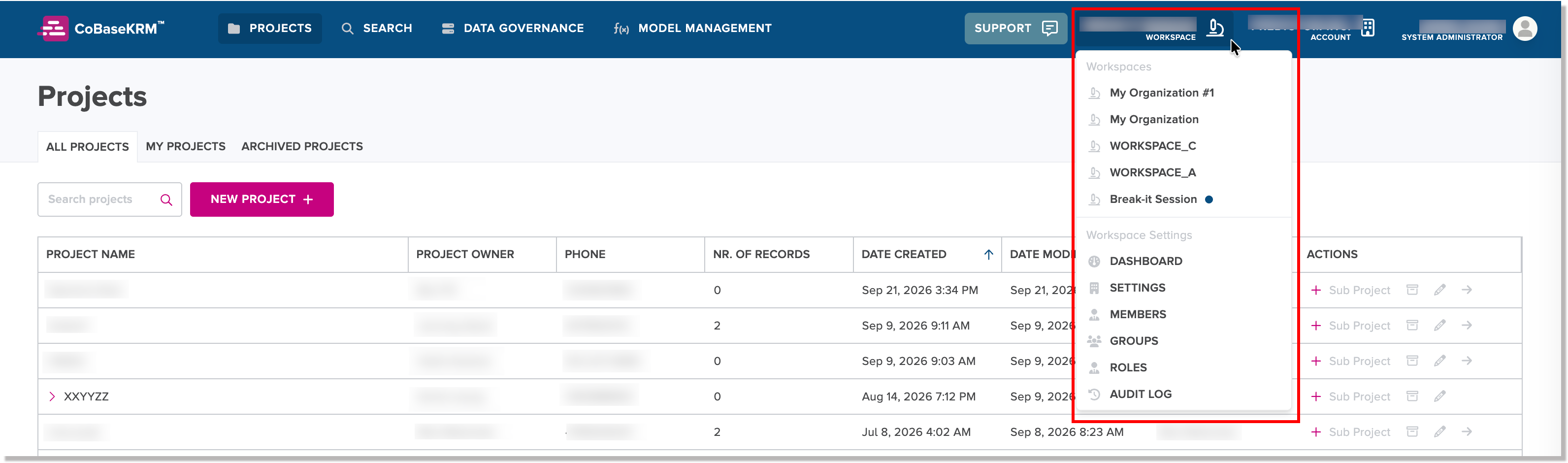
If you are a member of more than one workspace, you can navigate to a different workspace by clicking or tapping the Workspace name field in the navigation bar and select the corresponding menu option.
To switch to a different workspace:
-
Click or tap the Workspace icon on the right of the navigation bar.
A menu is displayed showing a list of workspaces that you are assigned to.
-
Select the workspace that you want to switch to.
You are navigated to the selected workspace and the web client updates the view accordingly.