Tags
Permissions and access
Minimum role: Lab manager
Client type: web client
The Data Governance - Tags tab lets you define tags that you can use to label project records, observations, and journal cards so that they will be searchable in the database. Tags can also be assigned to models for the same purposes. Tags are classified by tag type.
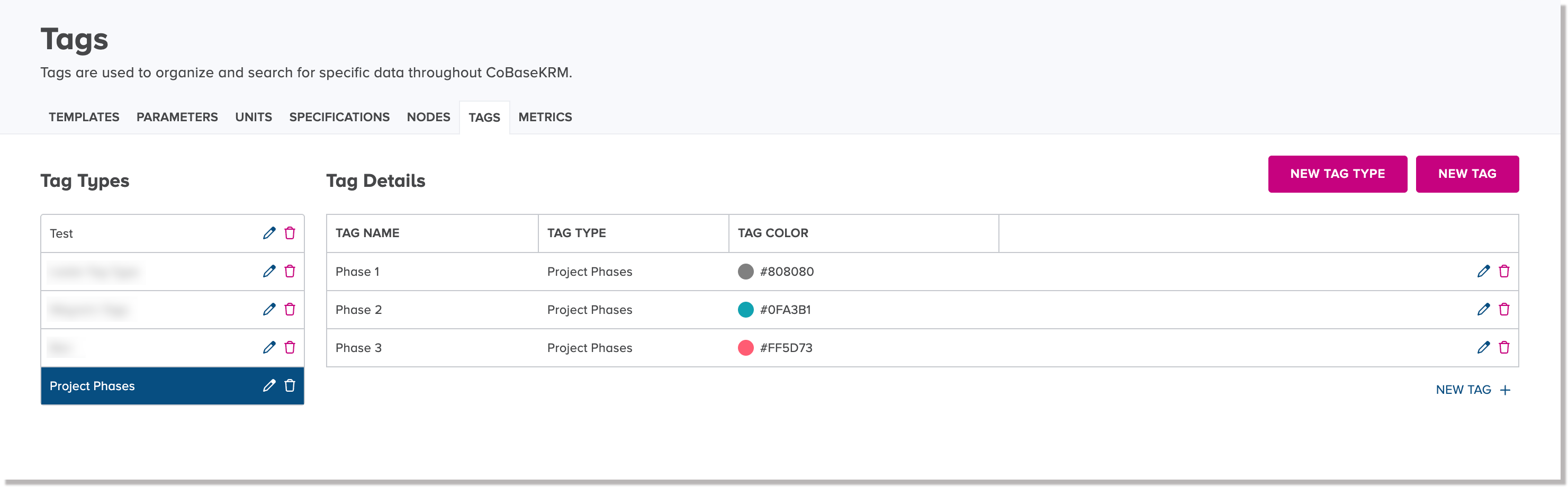
Tag Types
Tag types are used to classify tags into groups or categories. Examples of tag types are listed in the following table.
| Tag Type Name | Tag Type Description |
|---|---|
| Step Identity | Which unit operation a record/event/observation belongs to |
| Root-Cause Domain | Where in the production system a problem or observation originates. Used during root-cause analysis (Ishikawa/fishbone diagram). |
| Deviation Severity | Risk-based severity classification applied at deviation triage |
| Deviation Occurrence | Whether the deviation was anticipated and pre-approved, or unanticipated |
| Quality Event Type | Type of quality event being recorded |
| Detection Source | How and where the issue was first detected. |
| Investigation Status | Workflow state of an open deviation/CAPA/out-of-specification investigation. |
| Batch Disposition | GMP status of a batch as it moves through release |
| Campaign/Batch Type | Purpose of the batch within the product lifecycle (not its disposition) |
| Risk Level (post-QRM) | Risk classification output of a formal quantitative risk management (QRM) exercise (failure mode and effects analysist (FMEA), hazard analysis critical control point (HACCP), risk matrix) |
| Lifecycle Stage | Where the product resides in its overall lifecycle per ICH Q10 |
| Change Classification | Magnitude/impact class of a change-control record |
| Market Destination | Which regulatory market(s) a batch is intended for |
| Operational Context | Contextual operational metadata about "when/who/under what" local conditions under which a step occurred |
Create a Tag Type
When you are considering tag types for organizing tags, you may want to define various tag type descriptors to organize and group tags by specific project activities. For example, if you want to distinguish certain files that belong to a certain research study, you could define a tag type with the name of the research study.
To create a tag type:
-
On the Data Governance - Tags tab, click or tap the New Tag Type button.
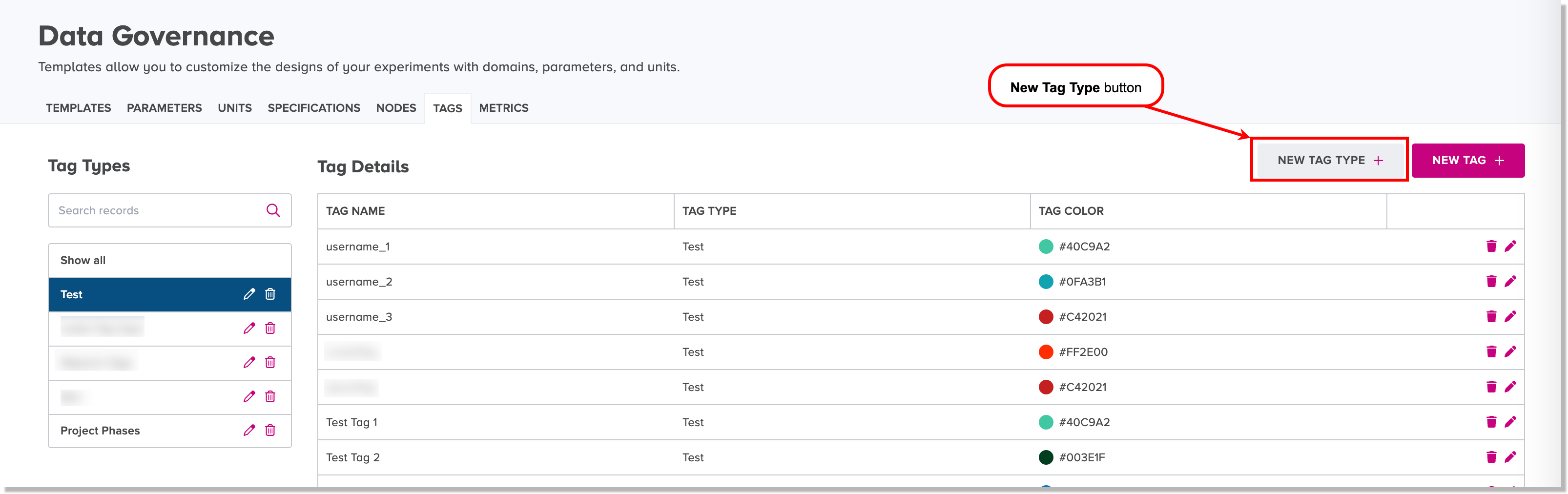
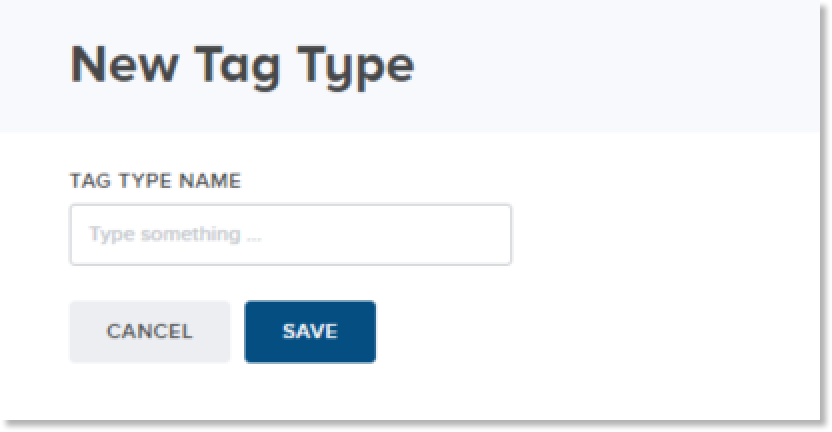
The New Tag Type dialog appears.
-
In the Tag Type Name field, type a unique name for the new tag type.
-
Click or tap Save.
The new tag type is saved and is displayed in the list of tag types.
Edit a Tag Type Name
To edit a tag type name:
-
On the Data Governance - Tags tab, click or tap the Edit icon
 beside the tag type name that you want to edit.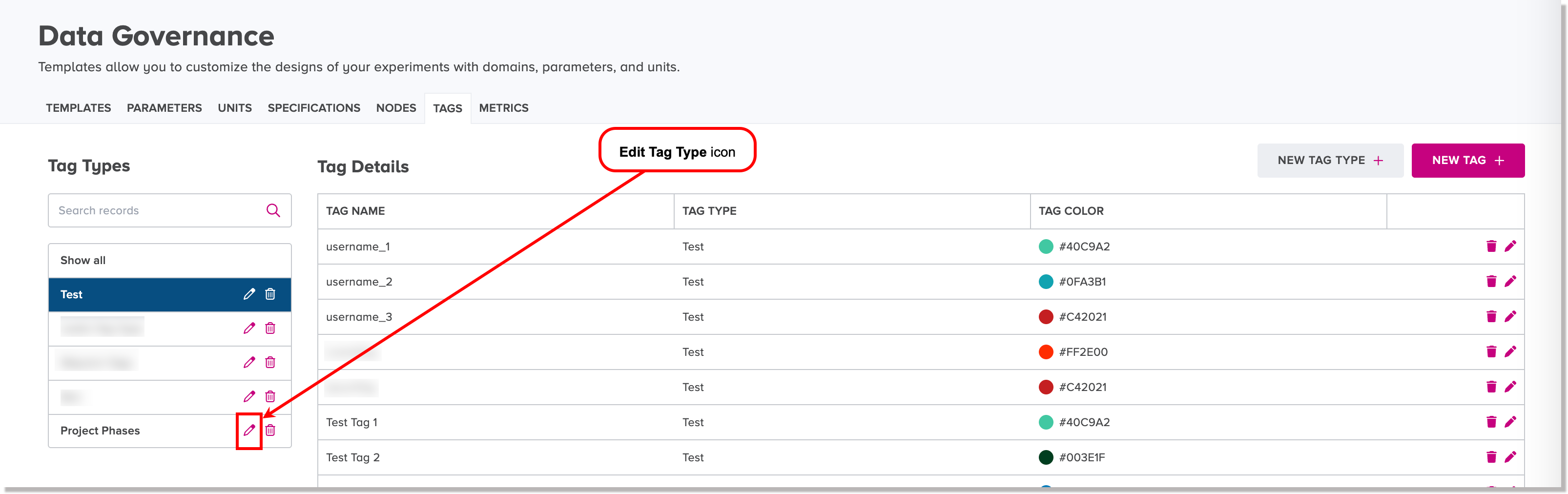
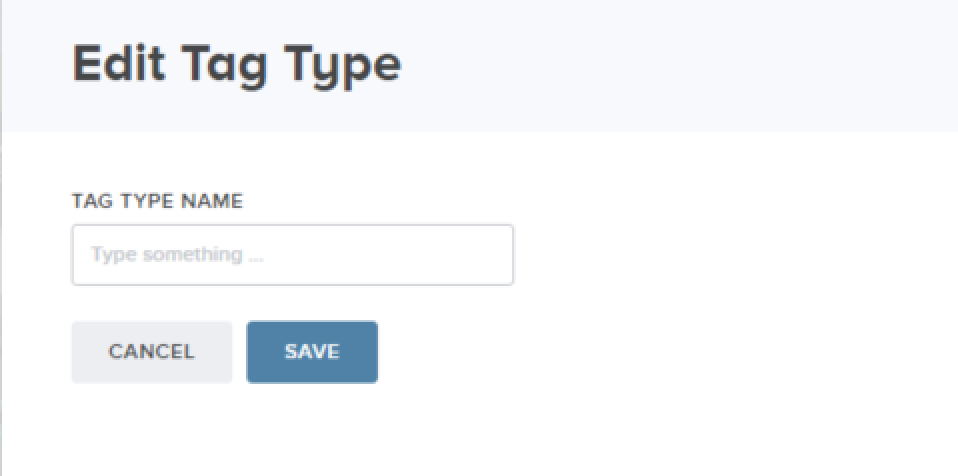
The Edit Tag Type dialog appears.
-
In the Tag Type Name field, change the tag type name, as needed.
-
Click or tap Save.
The updated tag type name is displayed in the list of tag types.
Delete a Tag Type
Warning
Once you have deleted a tag type, you will not be able to recover it, or find it using the search feature. A deleted tag type will be removed from views and fields where it was previously displayed.
To delete a tag type:
-
On the Data Governance - Tags tab, click or tap the Delete icon
 beside the tag type that you want to delete.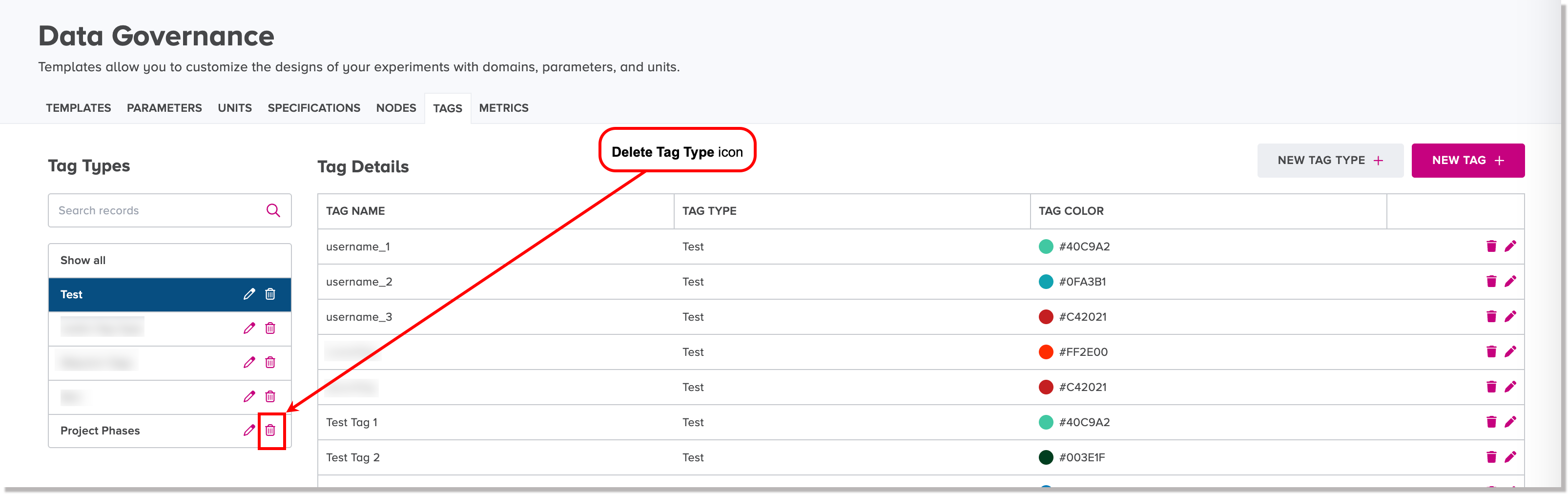
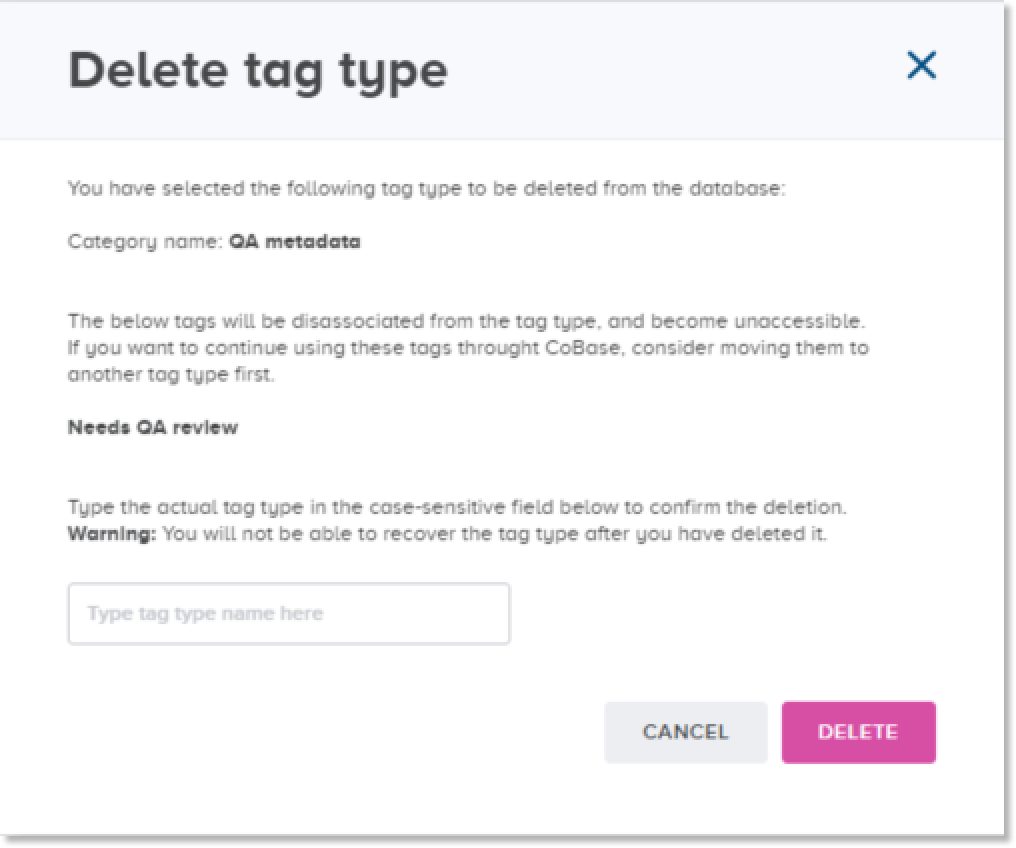
The Delete Tag Type dialog appears.
Note
To cancel the deletion, press Cancel.
-
To proceed with the deletion, type the exact name of the tag type in the input field.
Note
The input field is case sensitive. CoBaseKRM checks for the exact spelling of the parameter name before it will allow you to proceed with the deletion.
-
Press Delete.
The tag is removed from the Tags Management view and is deleted from the database.
Tags
Tags are used to index objects so that they are discoverable through search. Tags belong to tag types for classification purposes. A single tag can only belong to one tag type, but a tag type can have many tags that belong to it.
The following table lists how multiple tags are classified by tag type.
| Tag Type Name | Tag Name |
|---|---|
| Step Identity | Granulation |
| Step Identity | Compression |
| Step Identity | Coating |
| Step Identity | QA Inspection |
| Root-Cause Domain (6M) | Man (Manpower / People) |
| Root-Cause Domain (6M) | Machine (Equipment) |
| Root-Cause Domain (6M) | Method (Procedure) |
| Root-Cause Domain (6M) | Material |
| Root-Cause Domain (6M) | Measurement |
| Root-Cause Domain (6M) | Milieu (Environment) |
| Deviation Severity | Critical |
| Deviation Severity | Major |
| Deviation Severity | Minor |
| Deviation Severity | Incident |
| Deviation Occurrence | Planned |
| Deviation Occurrence | Unplanned |
| Quality Event Type | OOS (Out of Specification) |
| Quality Event Type | OOT (Out of Trend) |
| Quality Event Type | OOE (Out of Expectation) |
| Quality Event Type | Process Deviation |
| Quality Event Type | Equipment Failure |
| Quality Event Type | Environmental Excursion |
| Quality Event Type | Documentation Error |
| Quality Event Type | Material Issue |
| Quality Event Type | Complaint |
| Detection Source | In-Process Check (IPC) |
| Detection Source | Operator Observation |
| Detection Source | At Release Testing |
| Detection Source | Stability Study |
| Detection Source | Customer Complaint |
| Detection Source | Internal Audit |
| Detection Source | Regulatory Inspection |
| Detection Source | PAT / Continuous Monitoring |
| Detection Source | Annual Product Review (APR/PQR) |
| Investigation Status | Open |
| Investigation Status | Triage |
| Investigation Status | Investigation In Progress |
| Investigation Status | CAPA Initiated |
| Investigation Status | Effectiveness Check |
| Investigation Status | Closed |
| Batch Disposition | In-Process |
| Batch Disposition | Quarantine |
| Batch Disposition | Under Investigation |
| Batch Disposition | On Hold |
| Batch Disposition | Released |
| Batch Disposition | Rejected |
| Batch Disposition | Reworked |
| Batch Disposition | Reprocessed |
| Batch Disposition | Destroyed |
| Campaign / Batch Type | R&D / Lab |
| Campaign / Batch Type | Engineering |
| Campaign / Batch Type | Demonstration |
| Campaign / Batch Type | Clinical (Ph I/II/III) |
| Campaign / Batch Type | Process Validation (PPQ) |
| Campaign / Batch Type | Commercial GMP |
| Campaign / Batch Type | Stability |
| Campaign / Batch Type | Tech Transfer |
| Campaign / Batch Type | Re-Validation |
| Risk Level (post-QRM) | High |
| Risk Level (post-QRM) | Medium |
| Risk Level (post-QRM) | Low |
| Lifecycle Stage (Q10) | Pharmaceutical Development |
| Lifecycle Stage (Q10) | Technology Transfer |
| Lifecycle Stage (Q10) | Commercial Manufacturing |
| Lifecycle Stage (Q10) | Product Discontinuation |
| Change Classification | Like-for-Like |
| Change Classification | Minor (Notification) |
| Change Classification | Moderate (CBE / Type IB) |
| Change Classification | Major (PAS / Type II) |
| Change Classification | Critical |
| Market Destination | US (FDA) |
| Market Destination | EU (EMA) |
| Market Destination | Japan (PMDA) |
| Market Destination | UK (MHRA) |
| Market Destination Canada (HC) | |
| Market Destination | ROW |
| Market Destination | Multi-Market |
| Operational Context | Day Shift |
| Operational Context | Evening Shift |
| Operational Context | Night Shift |
| Operational Context | Weekend |
| Operational Context | First-of-Campaign |
| Operational Context | Mid-Campaign |
| Operational Context | Last-of-Campaign |
| Operational Context | Post-Maintenance |
| Operational Context | Post-Changeover |
Create a Tag
Based on defined tag types, you create tags that belong to the tag types. For example, if you have a tag type named "Research Study Group A," you may want to define associated tags according to different site facilities.
To create a tag:
-
On the Data Governance - Tags tab, click or tap the New Tag button.
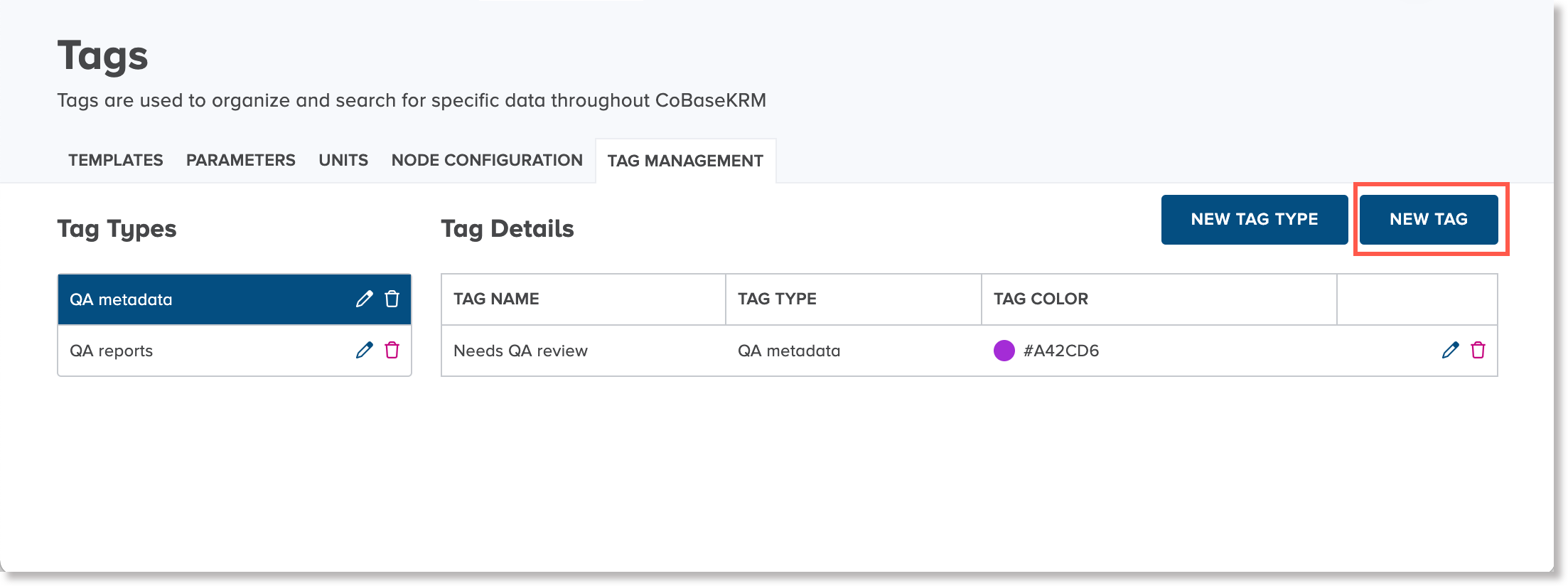
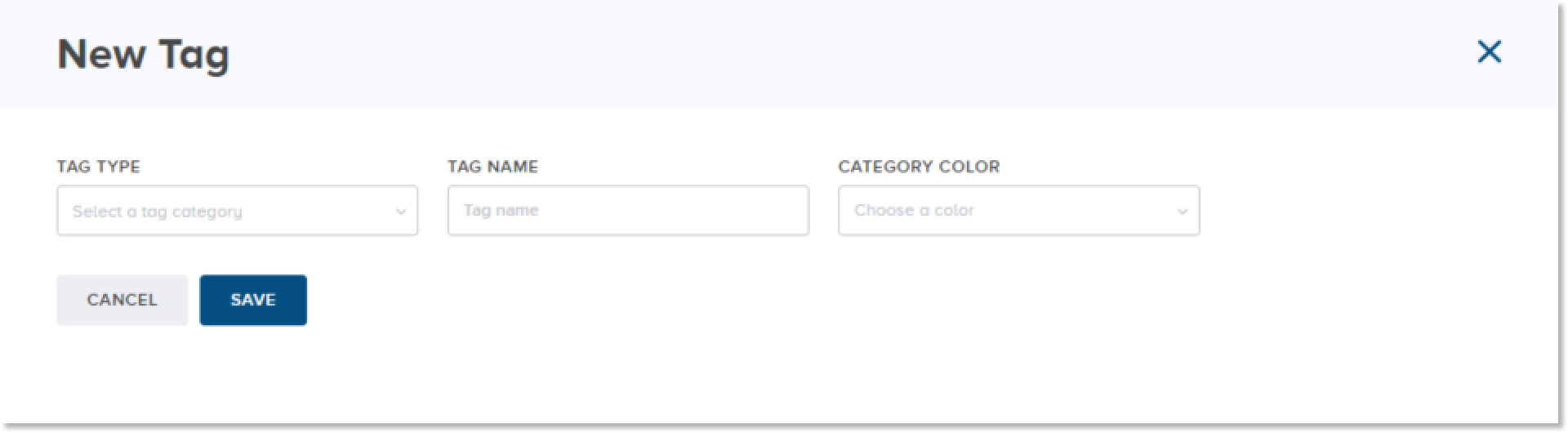
The New Tag dialog appears.
-
In the Tag Type field, select a tag type from the drop-down list to categorize the new tag.
-
In the Tag Name field, type a unique name for the new tag.
-
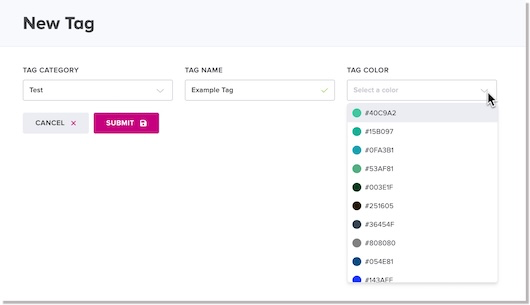
In the Category Color field, select a hex code value from the drop-down list for the new tag.
-
Click or tap Save.
The new tag is saved and is displayed in the list of tags.
Edit a Tag
To edit a tag:
-
On the Data Governance - Tags tab, click or tap the Edit icon
 beside the tag that you want to edit.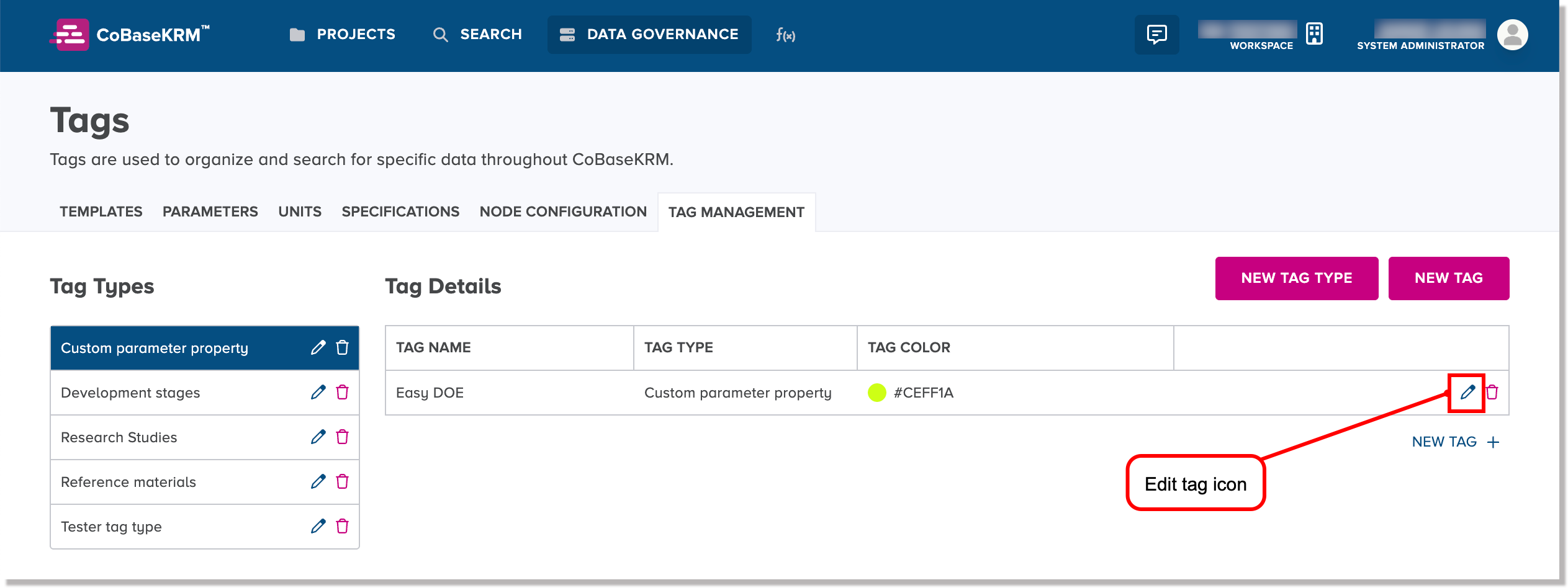
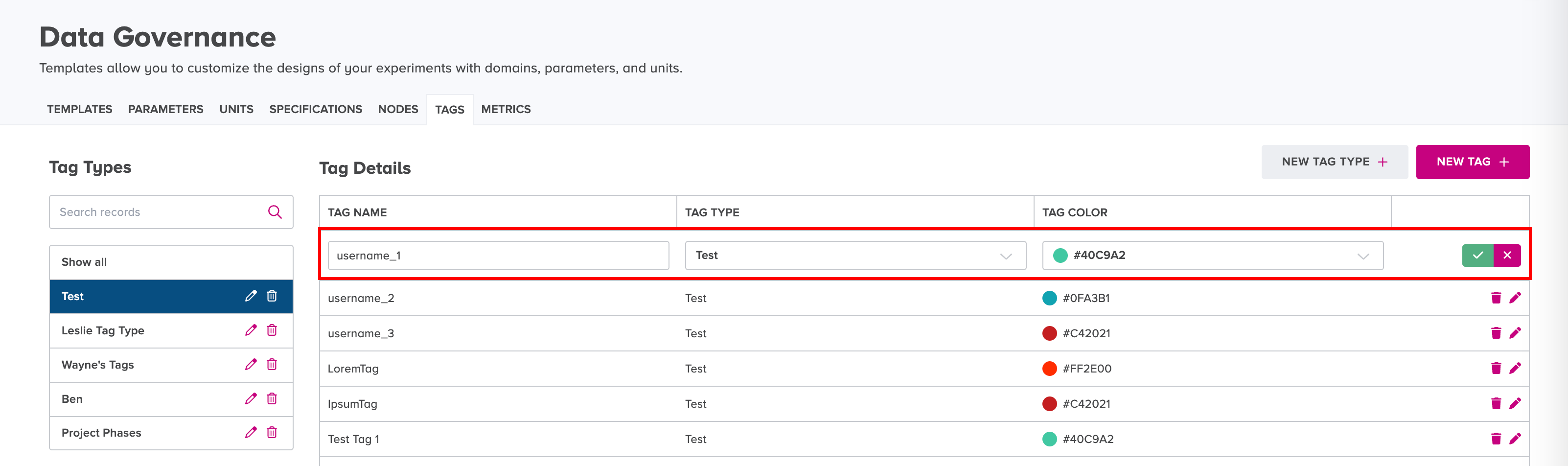
The row of tag fields becomes editable.
-
In the Tag Name field, Tag Type fields, and TagColor field, change the details for the existing tag, as needed.
-
Click or tap the Save icon
 .
. The updated tag is displayed in the list of tags.
Delete a Tag
The web client supports the ability to delete a tag.
Warning
Once you have deleted a tag, it will be removed permanently from the database. You will not be able to recover it and will not be searchable. A deleted tag will be removed from views and fields where it was previously displayed.
To delete a tag:
-
On the Data Governance - Tags tab, click or tap the Delete icon
beside the tag that you want to delete. 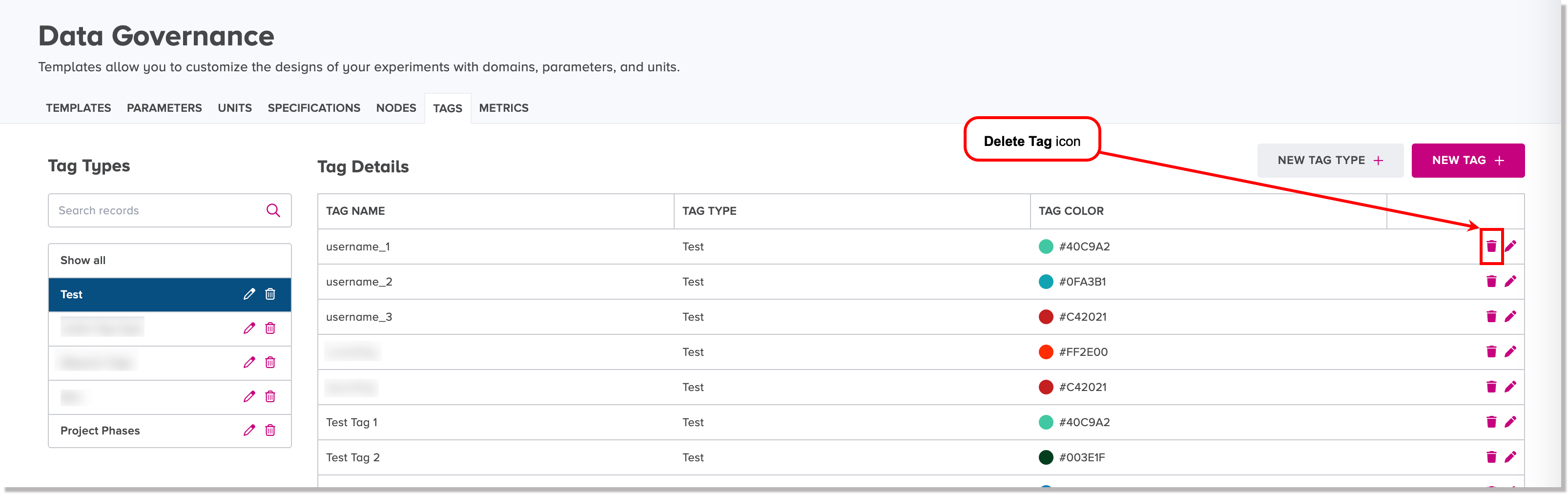
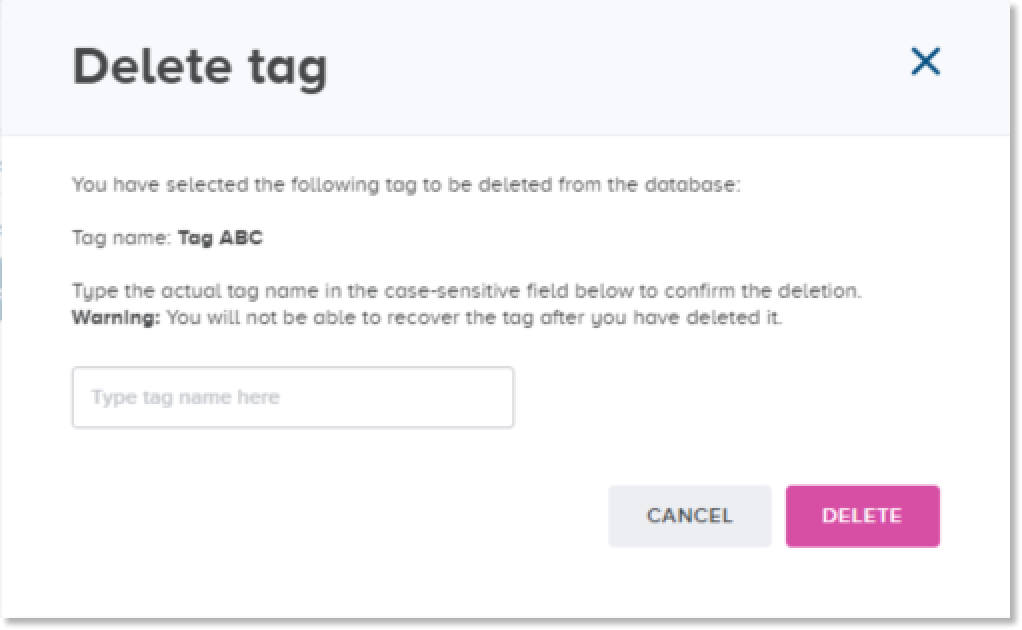
The Delete Tag dialog appears.
Note
To cancel the deletion, press Cancel.
-
To proceed with the deletion, type the exact name of the tag in the input field.
Note
The input field is case sensitive. CoBaseKRM checks for the exact spelling of the tag name before it will allow you to proceed with the deletion.
-
Click or tap Delete.
The tag is removed from the Tags Management view and is deleted from the database.