Workspaces
The workspace icon in the navigation bar of the web client lets you:
- display a dashboard for the workspace
- switch from one workspace to another
- navigate to the workspace settings, or
- navigate to the account settings
Display a dashboard for a workspace
The Workspace > Dashboard tab of the Settings view displays a dashboard for a given workspace. It provides a snapshot of the usage of a workspace.
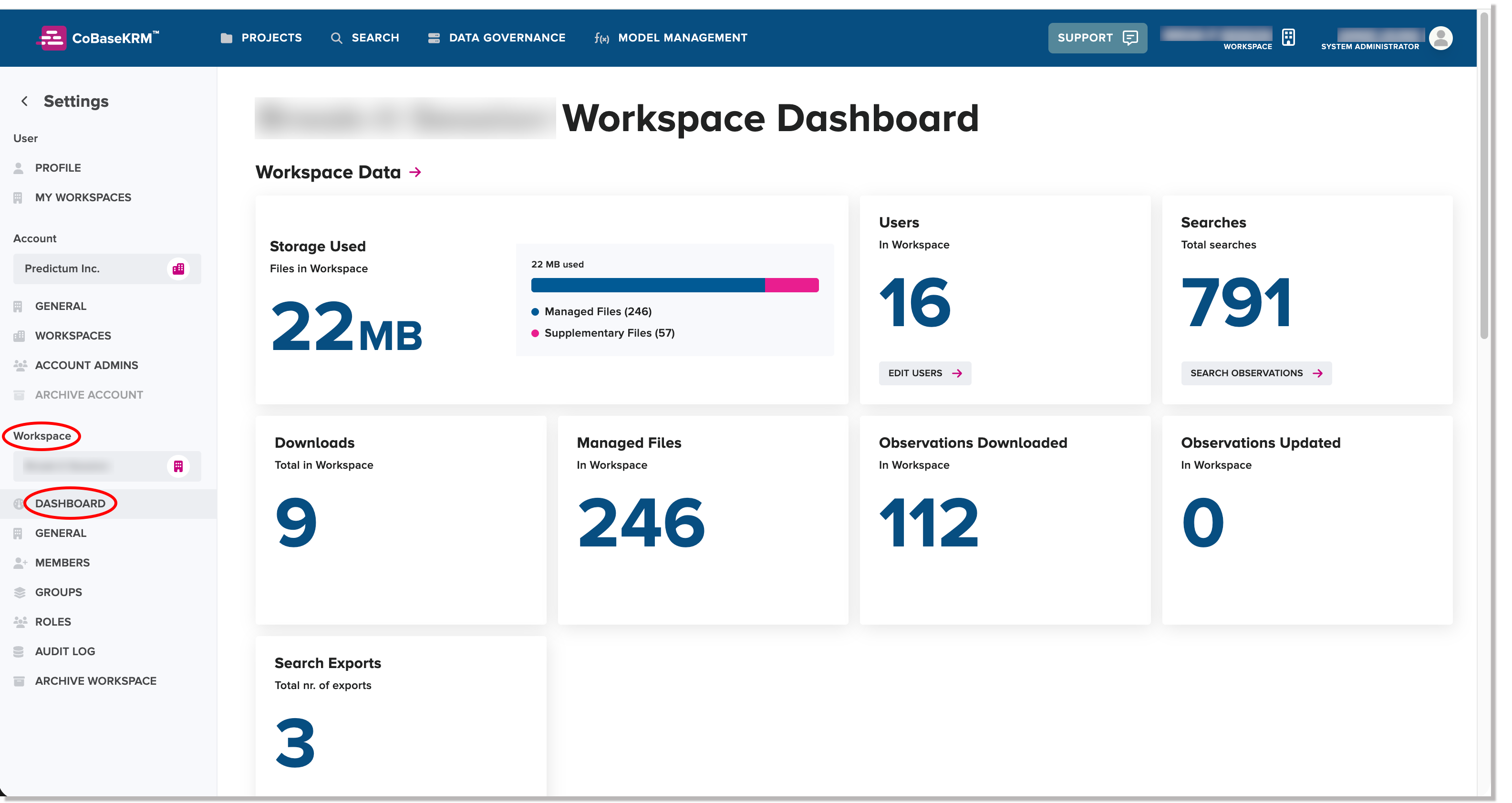
A workspace dashboard is divided into three main sections and provides total counts for commonly used objects:
- Workspace objects
- Data governance objects
- Project objects
Switch to a different workspace
If you are a member of more than one workspace, you can navigate to a different workspace by clicking or tapping the Workspace name field in the menu bar and select the corresponding menu option.
To switch to a different workspace:
-
Click or tap the
 button on the right in the menu bar.
 A menu is displayed showing a list of workspaces that you are assigned to.
-
Select the workspace that you want to switch to.
You are navigated to the selected workspace and the web client updates the view accordingly.
Add a new workspace
To add a new workspace in the web client:
-
Click or tap the Workspace name field to display a menu, and select Add new workspace.
You are navigated to the setting up a new workspace view.
-
Optional: In the Workspace Name field, type the name of the new workspace and click or tap Name and Create Workspace button.
Note
If you don't want to define a name for the new workspace and have the web client assign a default name, which you can change later, click or tap the Skip Naming button.
The Invite Users view appears.
-
Optional: In the Invite Users view, if you want to invite other users to join the new workspace as a member, type the email address for a user in the input field and click the drop-down list to select a role for the user's permissions.
Note
If you don't want to invite other users to the new workspace just yet, you can click or tap the Skip Inviting Users button. You can always invite other users to the workspace later.
You are navigated to the Projects view of the new workspace. A banner is displayed at the top of the view to show the trial status of the new workspace and how many remaining days before the trial period expires.